

Why Is My Upload Slow – Fix Slow Internet Speed
Are you tired of slow upload speeds? You’re not alone. Many people struggle with this issue, especially when trying to share files or start video calls. Slow internet can really slow you down online, but there are ways to fix it.
Upload speed is key for tasks like video chatting and file sharing. It’s just as important as download speeds for a good online experience. Figuring out why your upload is slow is the first step to faster internet.
Many things can slow down your internet, like your hardware and connection type. For example, Wi-Fi is usually slower than a wired connection. If you’re using satellite or wireless internet, you might get slower speeds than cable or fiber users.
Key Takeaways
- Upload speed is critical for video calls, file sharing, and streaming.
- Wi-Fi is generally slower than wired connections.
- Connection types (DSL, cable, fiber) affect upload and download speeds.
- Background services can consume bandwidth and slow uploads.
- Router placement and firmware updates can improve speed.
Understanding Your Internet Connection Speed
Internet speed is key for our daily online tasks. Let’s explore the important parts of your connection and how they affect your online life.
Upload Speed vs. Download Speed
Download speed shows how fast you get data. Upload speed is about sending data. For smooth video calls or file sharing, a strong upload speed is crucial.
The FCC says broadband needs at least 25 Mbps download and 3 Mbps upload. But for better performance, aim for 10 Mbps upload per person at home.

What Affects Your Internet Speed?
Many things can change your internet speed:
- Network congestion during peak hours
- Distance from your router
- Number of connected devices
- Outdated hardware
- Bandwidth throttling by your ISP
Bandwidth throttling happens when your ISP slows your connection. This is often because of high usage or network congestion.
Measuring Your Current Upload Speed
To find your upload speed, use an online speed test tool. These tools check both download and upload speeds. Remember, Wi-Fi speeds are usually 50-60% of what wired speeds promise.
For the best results, test at different times and compare with your plan’s speeds. If speeds are always low, it’s time to talk to your ISP or upgrade your plan.
Common Causes of Slow Upload Speeds
Slow upload speeds can be really frustrating. Especially when you’re trying to share big files or do video calls. Let’s look at some common reasons for slow uploads and how they affect your internet.
Network Congestion
Network congestion happens when lots of people use the internet at the same time. This can make servers work harder and slow down uploads. During busy times, your upload speed might drop below 20Mbps, which is slow.

Hardware Limitations
Old routers or modems can really slow down your uploads. Using Wi-Fi instead of a wired connection can cut upload speeds by half or more. If your uploads are always slow, it’s time to check your gear.
ISP Throttling
Internet Service Providers (ISPs) might slow down your connection on purpose. This is called throttling and often happens when you go over your data limit. For example, some providers like HughesNet let you buy “data tokens” for fast speeds until you use up the data.
| ISP Plan | Download Speed | Upload Speed |
|---|---|---|
| Spectrum (up to 500Mbps) | 500Mbps | 20Mbps |
| Spectrum (up to 1,000Mbps) | 1,000Mbps | 35Mbps |
| Some DSL/Satellite | Varies | Below 3Mbps |
Knowing these reasons can help you find and fix slow upload speeds. For smooth video calls, Zoom says you need at least 3Mbps upload speed. This shows how important fast upload speeds are today.
Run a Speed Test
Wondering why your upload is slow? A speed test can help find the problem. Let’s look at how to check your internet speed and what the results mean.
How to Conduct a Speed Test
Running a speed test is easy. Go to a trusted site like Speedtest.net or Fast.com. Click “Go” and wait for it to finish. It shows your download and upload speeds in Mbps (Megabits per second).

Analyzing the Results
The FCC says good internet speed is at least 25Mbps download and 3Mbps upload. If your speeds are lower, you might have slow internet. For better performance, aim for 40-100Mbps.
Understanding Speed Test Variability
Speed test results can change. Things like busy times, service area conditions, and old equipment can affect your speed. Run tests over a day or two to get a clearer picture.
| Speed Range (Mbps) | Classification |
|---|---|
| 0-5 | Very slow |
| 5-40 | Slow to moderate |
| 40-100 | Moderate to fast |
| 100-500 | Very fast |
| 500-1,000+ | Extremely fast |
Keep in mind, your actual speeds might not match what’s advertised. If you’re always getting slow upload speeds, it’s time to look into it or talk to your ISP.
Checking Your Hardware
Your internet hardware is key to your upload speeds. Old routers and modems can slow you down, even with a fast internet plan. Let’s look at how to check and optimize your hardware for better performance.
Router and Modem Specifications
Old modems and routers can hold you back. For the best speeds, consider upgrading to newer tech. Cable modems with DOCSIS 3.1 and routers with Wi-Fi 6 are top choices for handling large files and fast uploads.
| Device | Recommended Technology | Benefits |
|---|---|---|
| Cable Modem | DOCSIS 3.1 | Faster speeds, improved reliability |
| Router | Wi-Fi 6 | Better handling of multiple devices, increased throughput |
Cables and Connections
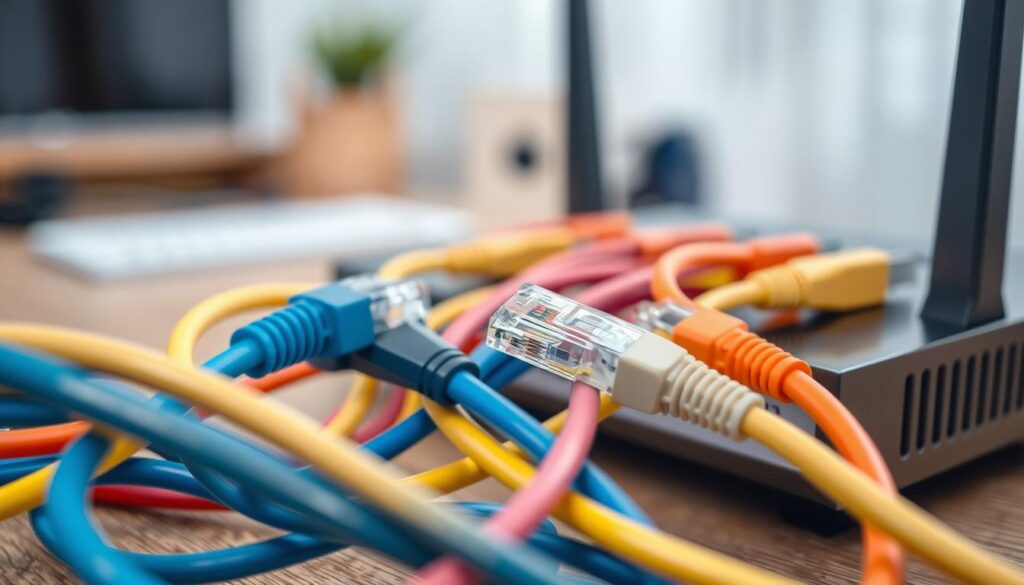
Using a wired Ethernet connection can boost your upload stability and speed. It can improve performance by up to 50% compared to Wi-Fi. Check your cables for damage and ensure they’re properly connected.
Updating Firmware
Regular firmware updates for your modem and router are crucial. These updates can improve performance and fix bugs that might slow your uploads. Check the manufacturer’s website for the latest firmware versions and follow their instructions to update.
Remember, where you place your hardware matters too. Position your router centrally and elevate it for the best signal strength. This can greatly impact your upload speeds, especially for large file sizes.
Wi-Fi vs. Wired Connections
Choosing between Wi-Fi and wired connections can greatly affect your internet speed. Let’s look at the benefits of each and how to set up your network for the best results.
Benefits of Wired Connections
Wired connections are faster and more stable than Wi-Fi. Ethernet cables can reach speeds of up to 1 Gbps for Cat6, and Cat8 can go up to 40 Gbps. This makes them perfect for tasks that need lots of bandwidth and quick response times, like online gaming or big file transfers.
| Connection Type | Maximum Speed | Latency |
|---|---|---|
| Cat6 Ethernet | 1 Gbps | Low |
| Cat8 Ethernet | 40 Gbps | Very Low |
| Wi-Fi (802.11ax) | 9.6 Gbps | Higher |
Tips for Optimizing Wi-Fi
Wi-Fi might not be as fast as wired connections, but it’s convenient and mobile. To get better Wi-Fi performance:
- Put your router in the middle of your home and away from things that block signals
- Use the 5 GHz band for faster speeds when you can
- Keep your router’s firmware up to date
- Think about getting a newer Wi-Fi standard like 802.11ax (Wi-Fi 6)
When to Use a Wi-Fi Range Extender
If your Wi-Fi signal is weak in some parts of your home, a range extender can help. These devices make your Wi-Fi signal stronger, which can improve your internet speed in hard-to-reach areas. Use a range extender when:
- You have dead zones in your home
- Your Wi-Fi signal gets much weaker in distant rooms
- You need to cover a big area with Wi-Fi
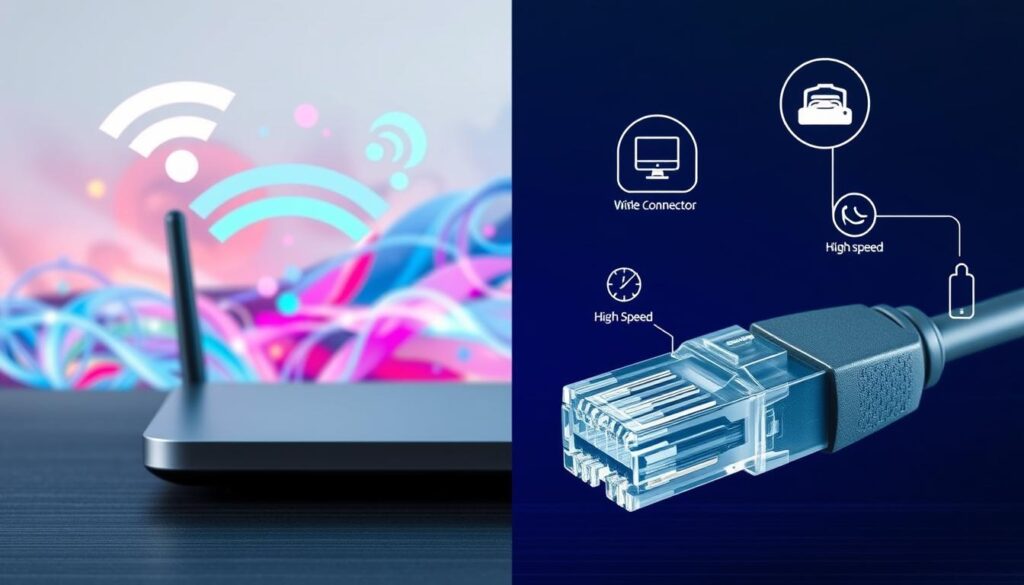
While Wi-Fi is flexible, a wired connection is still the best for fast, reliable internet, especially for tasks that use a lot of bandwidth.
Background Applications and Bandwidth Usage
Your internet speed isn’t just about what you’re actively doing. Background processes can eat up a lot of your bandwidth. Let’s explore how these hidden bandwidth hogs affect your upload speed and what you can do about it.
Identifying Bandwidth Hogs
Background applications can use up to 25% of your total bandwidth without you even realizing it. This silent drain can really slow down your upload speeds. It’s especially true during important tasks like video calls or file transfers.

Closing Unnecessary Applications
Take control of your bandwidth by closing apps you’re not using. Even if you’re not actively using devices, they still run in the background and use up your data if they’re connected to your WiFi. Closing unused apps can free up to 30% of your bandwidth. This lets your important uploads run faster.
Prioritizing Important Uploads
When you need to ensure smooth uploads, consider using Quality of Service (QoS) settings on your router. This can boost performance of critical applications by up to 40% during high-traffic hours. For example, video conferencing apps need 1-3 Mbps for quality group calls. Livestreaming may need over 15 Mbps for 4K videos.
Remember, upload speeds are often much lower than download speeds. They usually only use 10-20% of your total bandwidth. By managing background processes and prioritizing important tasks, you can make the most of your available upload speed. This helps avoid bandwidth throttling from your ISP.
Choosing the Right Internet Plan
Choosing the right internet plan can really boost your speed and server capacity. Let’s look at your options to find the perfect plan for you.
Understanding Different Types of Plans
Internet plans vary a lot. Fiber optic is the fastest, with speeds from 100 to 5,000+ Mbps. Cable internet usually offers 20-30 Mbps uploads. Satellite internet has speeds between 5-50 Mbps, and 5G internet can give you 15-50 Mbps.
Factors to Consider When Upgrading
Think about what you do online when upgrading. Activities like video calls, file transfers, and live streaming need faster upload speeds. For smooth Zoom calls, you should aim for at least 3Mbps upload speed. Also, remember the number of devices connected, as they can affect your speed.
Comparing ISP Options
ISPs offer different upload speeds. For example, Spectrum plans have download speeds up to 1,000Mbps with 35Mbps uploads. Cox, Optimum, and Xfinity also offer similar upload speeds. Always choose a wired Ethernet connection for faster and more reliable speeds than Wi-Fi.
| Internet Type | Upload Speed Range (Mbps) | Best For |
|---|---|---|
| Fiber Optic | 100 – 5,000+ | Heavy uploaders, streamers |
| Cable | 20 – 30 | Regular internet users |
| Satellite | 5 – 50 | Rural areas |
| 5G | 15 – 50 | Mobile users |
Optimizing Your Computer Settings
Making small changes to your computer settings can really help your upload speeds. Let’s look at some important tweaks to make your internet faster.
Checking Firewall Settings
Firewalls keep your computer safe but can slow down uploads. Check your firewall settings to make sure they’re not blocking important traffic. Look for options to let specific apps through the firewall for faster uploads.
Disabling VPNs and Proxies
VPNs protect your privacy but can slow down uploads. If uploads are slow, try turning off your VPN. This can make uploads up to 20% faster in some cases.
Adjusting Quality Settings for Uploads
Adjust your upload settings for better performance. If you’re uploading big files or streaming, try lowering the quality a bit. This can make uploads faster without hurting the quality too much. For example, compressing images before uploading saves time and bandwidth.
Don’t forget to clear your browser cache often. A messy cache can slow down your internet, affecting uploads. Most browsers let you clear the cache easily, which can boost your upload speed.
By tweaking these settings, you’ll likely see a big improvement in your upload speeds. The exact change will depend on your hardware and internet plan.
The Impact of Distance from Your Router
Wondering why your upload speed is slow? The distance from your router is key. Where you place your router can greatly affect your internet speeds. This includes both download and upload speeds.
Understanding Signal Strength
Router signals get weaker as they travel. Things like thick walls, appliances, and even fish tanks can block them. This blockage can slow down your speeds and cause network congestion.
Extending Your Network Range
To improve weak signals, try these solutions:
- Use a Wi-Fi extender to boost your signal
- Upgrade to a mesh network system for better coverage
- Switch to a wired connection for stable speeds
Finding the Best Position for Your Router
Getting your router in the right spot can really boost your upload speeds:
- Place your router in a central location
- Elevate it off the floor
- Keep it away from electronic devices and appliances
- Adjust antenna position for better signal distribution
Try different spots to see what works best for your home. A well-placed router can cut down on network congestion. This will improve your internet performance overall.
| Factor | Impact on Upload Speed |
|---|---|
| Distance from Router | Significant decrease with increased distance |
| Walls and Obstacles | Up to 50% signal loss per obstacle |
| Router Elevation | 25% improvement when placed higher |
| Electronic Interference | Up to 30% speed reduction |
Scheduling Your Uploads
Smart timing can greatly improve your upload speeds. Plan your uploads for off-peak hours. This way, you avoid busy times and server limits.
Best Times to Upload
Late nights and early mornings are best for uploads. Network traffic is low, leading to faster speeds. One user saw speeds of 50 Mbps during these times, compared to 3-5 Mbps during busy hours.
Using Off-Peak Hours
Quiet internet times are perfect for uploads. Many find uploads faster after 11 PM or before 6 AM. This is because there’s less online activity, giving you more bandwidth.
Automating Uploads with Scheduling Tools
Use scheduling tools for off-peak uploads. They start your uploads at set times, saving you late nights. For example, start large backups at 2 AM when it’s quiet.
Remember, file size is key. Smaller chunks help manage uploads, especially in busy hours. Smart scheduling boosts your internet use and upload success.
When to Contact Your ISP
Wondering why your upload speed is slow? It might be time to talk to your Internet Service Provider (ISP). Even if you’ve tried to fix it yourself, sometimes the problem is bigger than you can handle. Let’s look at when and how to ask your ISP about slow upload speeds.
Signs It’s Time to Reach Out
Have you checked your hardware and run antivirus software but still have slow speeds? If so, it’s time to call your ISP. This is especially true if your speeds suddenly dropped or are way off from what you’re paying for. Starting in April 2024, the FCC brought back net neutrality rules, which could change how ISPs handle internet traffic.
What to Ask Your Internet Service Provider
When you call your ISP, have specific questions ready. Ask about network congestion, if they’re throttling your internet, and if your plan has data limits. Some ISPs, like AT&T and Xfinity, have data limits, while others, like Spectrum, offer plans without limits. If your upload speeds are slow, ask about upgrading to a plan with better upload speeds.
Understanding Your Rights as a Consumer
As a consumer, you have rights to your internet service. If your ISP isn’t giving you the speeds they promised, you can complain to the FCC. Some states, like California, have laws against throttling websites based there. Mobile users might face more throttling than those with cable, DSL, or fiber connections. Knowing your rights helps ensure you get the service you pay for.


